


Landscape photographs are those that seem to be static, but indicate movement through clouds, flowing water, swaying vegetation, and changing light. Dreamina AI can convert these images into moving clips without the need for another photoshoot. Its image-to-video tools add movement to static scenes by referencing images and text. It is not the aim to animate everything at once. Instead, focused movement maintains the original composition, atmosphere, and recognizable features of the landscape and adds visual interest.
Understand the Three Main Sources of Landscape Motion
It is best to start the landscape animation with the movement that is already apparent from the landscape information present in the photograph. The AI image to video generator technology translates those details into movement, with the resulting images being creative simulations and not real environmental recordings. Cloud movement can indicate wedreaminaather changes with the slow drift across the sky. Water animation adds rhythm with ripples, gentle waves, and subtle changes in the foam. The light movement brings variation to the atmosphere, moving highlights and gentle lighting. When combined with leaves, grasses, and branches reacting naturally to the implied wind, vegetation adds another dimension. With well-crafted prompts and the provided reference controls, Dreamina AI can decipher these elements. Mist and distant haze can enhance depth if they do not obscure significant landscape elements.

Prepare Landscape Images for Convincing Animation
Select a landscape image with a strong focus, identifiable foreground and background depth. High-resolution images retain details of coastlines, mountain ridges, foliage features, and far-away buildings. Having a clear horizon also helps to distinguish between sky and land or water, which aids in a unified composition. But irregular edges of clouds, complicated reflections, and overlapping branches can put consistent movement to the test. Examine these areas before uploading your image to Dreamina AI. Retain the original image for comparison post-generation, especially if there are unique peaks, cliffs, or structures in the image. If available, other references may be used to help guide visual consistency. A good start image has valuable visual detail, but it cannot ensure a flawless preservation throughout the clip produced.
Choose a Motion Direction That Matches the Landscape
Movement is a benefit to every landscape, regardless of whether it is complementing or competing with its natural character. Coastal photos are good for repeating waves, limited foam changes, and mild water movement. If the peaks are not moving and the clouds are moving slowly overhead, mountain views tend to look convincing. It’s better to have some branches and leaves moving than having all the plants move in the same direction in forest scenes. If subtle airborne dust and/or gradual changes in illumination are appropriate for the original conditions, then desert landscapes may be appropriate. Special care must be taken with lake scenes, as reflections must react in a plausible manner to movement of the surface. Various elements should move at varying speeds, and too much movement at once can make the image look unstable. Begin with one dominant part, and only add secondary movement if the piece calls for it.
Steps to Animate Landscapes: Clouds, Waves and Light With Image to Video AI
Step 1: Upload your scenery shot and describe the motion
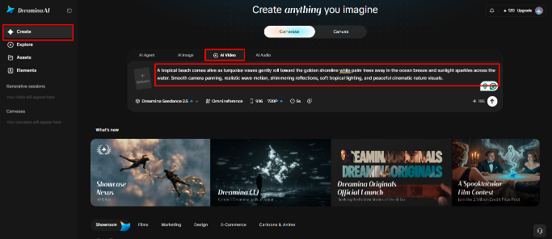
1. Sign up or log in to Dreamina, then upload your favorite landscape photo.
2. Open the “Create” tab from the left menu and select the “AI video”
3. Write a detailed text prompt about how the scene should move and feel. Mention video elements, theme, and concept, such as drifting clouds, rolling waves, or shifting light.

Step 2: Select your model, settings, and generate
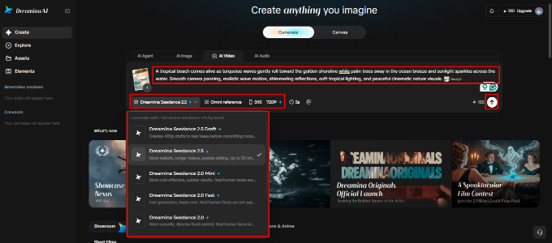
1. Look at the bottom of the dialogue box and choose a model.
2. Options include Dreamina Seedance 2.5, Dreamina Seedance 2.0, Dreamina Seedance 2.0 Fast, Dreamina Seedance 2.0 Mini, Dreamina Seedance 1.0, and more.
3. Click “Omni reference” to add extra reference images, so the AI captures your scene accurately.
4. Choose a custom frame shape and clarity using the “Aspect ratio” and “Resolution”
5. Then press the “Generate” tab and let the AI animate your landscape.

Step 3: Refine the scene and save your final clip
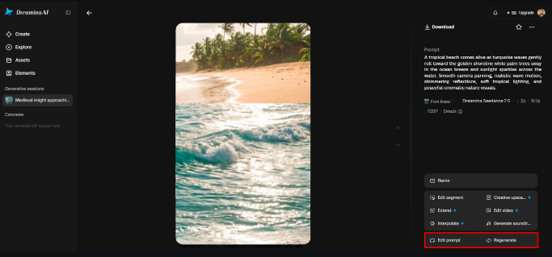
1. Not happy with the motion? Try “Edit prompt” or “Regenerate” to improve the outcome.

2. Tweak the finished clip with the “Edit video” option whenever needed.
3. Choose “Edit segment” to change just one stretch, like the sunset glow.
4. Lengthen the scene with “Extend video”, or lift its detail through “Creative upscale”.
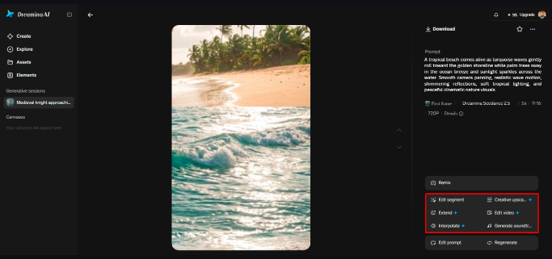

5. Dreamina lets you edit the clip in whatever way suits your vision.
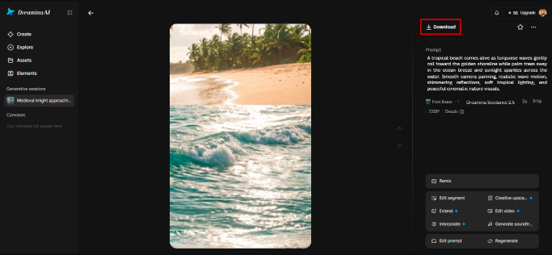
6. Finally, hit the “Download” tab at the top right to store the video locally.

Write Landscape Prompts With Clear Spatial Instructions
A useful landscape prompt will include the following: Setting, moving element, direction of movement, and features that do not move. For instance, a coastal scene with little waves rolling up to shore, and background cliffs unaffected. When the desired atmosphere is a calm one, state slow cloud drift. Camera direction should help the composition, for example, a gentle ‘push in’ on a wide mountain scene. Know stable points, such as buildings, tree trunks, peaks of mountains, and the horizon. Don’t mix contradictory instructions in the same element, for example, slow movement and rapid action. The more detailed the instructions are, the better Dreamina AI understands them in combination with the reference image, which contributes to setting the boundaries of creativity. Test different results, varying one motion variable at a time.
Build Atmosphere With Timing, Color, and Sound
The animated landscape is experienced through timing, color, and sound. The movement of the clouds and the sound of the water can be used to create a sense of calm and tranquility, or to add a sense of excitement and energy. Dreamina AI provides audio functionality in supported workflows, the extent of which might vary. If you add ambience, make sure that wind, water, or music is used sparingly to maintain the natural character of the scene. Coordinate color treatment with original lighting rather than added sunset colors or dramatic weather. The length of the clip is also important, as long clips may show inconsistencies in the visuals. Select a speed appropriate to the terrain and level of viewing.
Check Natural Continuity Before Publishing
Take a look at the whole clip for wavy edges of the clouds, warped branches, shaky coastlines, and reflections. Look for any changes that don’t belong between frames in distant buildings and mountain ridges. Also, camera movement may show invented scenery that is not in the original picture; check newly exposed areas. Look at the created clip and compare it with the source picture to see if there is any changed geography or unsupported environmental conditions. Utilize Dreamina AI landscape animations to create compelling narratives, artistic scenes, and social content with a touch of creativity, instead of weather footage that may not be reliable. Verify aspect ratio, playback quality, color consistency, and export resolution prior to publication. A final review is used to find distracting artifacts that may detract from the visual outcome.
Conclusion
Landscape movement is convincing when images are carefully chosen, motion is limited, and prompts are based on visual clues in the environment. Dreamina AI provides a creative approach to experimenting with cloud drift, water motion, and changing lighting from existing photos. Maintain familiar landmarks and align each direction of movement to the natural character of the movement in the scene. Start with one effect and see the result; then add more effects as needed. This targeted approach ensures visual continuity and adds new movement to static scenes.
To read more content like this, explore The Brand Hopper
Subscribe to our newsletter
Go to the full page to view and submit the form.