



Signing a PDF used to mean printing it, signing with a pen, scanning it and emailing it back. Today, most contracts, consent forms and approvals are signed on screen in a few minutes. Anyone looking for a tool to create a digital signature in PDF can use a browser-based PDF editor such as DocHub to create a signature once and reuse it across documents, without installing desktop software.
The harder part is usually not your own signature but everyone else’s. A lease may need a landlord and two tenants, and an offer letter may need a hiring manager and a new employee. For a product-level walkthrough of each setting, DocHub’s guide to multiple signers covers the process in detail. This article covers what a digital signature is, how to create one, how to route a PDF to several people and how to keep a record of who signed what.
Digital Signature or Electronic Signature?
In everyday use, “digital signature” usually means any signature added to a document on a computer or phone. Technically, the terms differ. An electronic signature is any electronic mark or action that shows a person’s intent to sign, such as a typed name or a drawn signature. A digital signature, in the strict sense, is a certificate-based method that uses cryptography and a digital ID to verify the signer and detect later changes.
For most day-to-day business paperwork, an eSignature is what people mean. In the United States, electronic signatures are legally recognized under the ESIGN Act and the Uniform Electronic Transactions Act (UETA), and DocHub’s eSignatures comply with both. Some specialized workflows call specifically for a certificate-based signature, so it is worth knowing which kind a document expects.
Three Ways to Create Your Signature
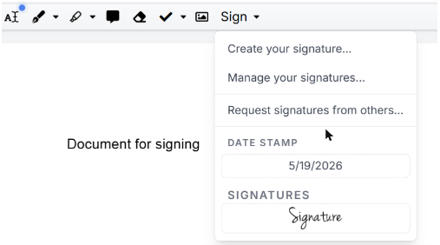
Most PDF editors offer three ways to create a signature, and DocHub supports all of them:
- Type it: enter your name and the editor renders it in a signature-style font. This is the fastest option and looks the same every time.
- Draw it: use a mouse, trackpad or a finger on a touchscreen. This is the closest match to a handwritten signature.
- Upload it: photograph or scan your handwritten signature and upload the image.
Once saved, the signature stays in your account and can be placed on any document. You can also add initials, which matter on contracts that ask each party to initial every page.

How to Sign a PDF Yourself
Signing your own document is a short, repeatable process:
- Upload the PDF from your computer or open it from Google Drive, Dropbox, OneDrive or Box.
- Fill in any blanks. The PDF editor lets you add text, images, comments and highlights, and white out outdated details.
- Place your saved signature where the document asks for it, and add initials where needed.
- Share the finished file by email, fax, public link or personal URL, or download it.
The same steps work for Word files, spreadsheets and presentations, since DocHub handles DOC/DOCX, XLS, PPT/PPTX and TXT files as well as PDFs.
Sending One PDF to Several Signers
Emailing a file back and forth between signers creates version confusion, so it is better to send for signature directly from the editor. The workflow usually looks like this:
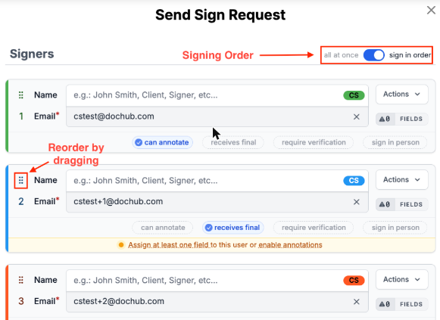
- Add each recipient by name and email address.
- Place signature, initials and other fields, and assign each field to the right person.
- Set a signing order if the sequence matters.
- Send the request and track progress.
Order matters more often than people expect. On a purchase agreement, the buyer often signs before the seller countersigns. In an HR workflow, an employee may acknowledge a policy before a manager confirms it. Sending in a set order means each person receives the document only when it is their turn. Assigning fields to named recipients also prevents the most common error in multi-signer documents: someone signing in another person’s box.

In-Person Signing, Bulk Sending and Templates
Not every signature happens over email. DocHub supports in-person signing, and its mobile Kiosk Mode turns a phone or tablet into a signing station, which suits a clinic front desk or a property showing. For the opposite situation, where one document goes to many people, bulk sending distributes it in a single step.
Templates help when the same form comes up again and again. Any document can become a reusable template, and each recipient completes their own copy while the original stays clean. A school sending the same permission slip to a whole class, or an HR team issuing a monthly policy acknowledgement, can build the fillable form once with text fields, checkboxes, signature and initials fields.
Tracking Signatures and the Audit Trail
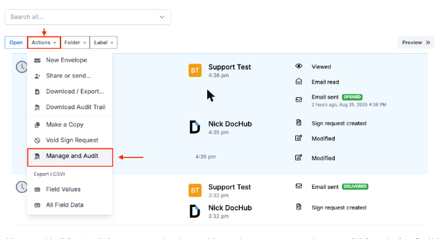
After a document goes out, the sender can track in real time who has signed and who has not. Once the document is complete, the record that matters most is the audit trail.
DocHub’s audit trail is tamper-evident. It logs views, signatures, initials and changes, along with each signer’s email address, IP address, geolocation, browser and operating system, and users can view or download it. In practice, this is the record a business turns to when a counterparty asks when a document was signed, or when an internal review needs to confirm that every required person completed it.

Security and Compliance
Signed documents often contain personal data, so the platform’s security matters as much as its signing tools. DocHub uses 256-bit encryption in transit and at rest, OAuth 2.0 authentication and two-factor authentication. Documents can be protected with passwords and access controls, and the infrastructure is hosted on Amazon Web Services in SOC 2-accredited data centers.
On compliance, DocHub holds SOC 2 Type II, audited annually, and lists compliance with HIPAA, GDPR, CCPA/CPRA, PCI DSS and FERPA. For healthcare work, DocHub signs a Business Associate Agreement on request. It also goes through Google’s Security Assessment for Google Workspace.
Where Multi-Signer PDFs Show Up
1. Real Estate, HR and Legal
Real estate teams route leases, disclosures and purchase agreements between buyers, sellers, landlords and tenants. HR teams send offer letters, W-4s and policy acknowledgements that both a new hire and an HR representative sign. Law offices use the same flow for NDAs, affidavits and engagement letters that need signatures from both sides.
2. Healthcare, Education and Small Businesses
Clinics collect patient intake and consent forms, with a Business Associate Agreement in place under HIPAA. Schools send permission slips and enrollment forms, and teachers can share assignments through the Google Classroom integration while FERPA applies to student records. Small businesses that run mainly on Gmail and Google Drive can use the Gmail add-on and Drive integration to keep signing inside the tools they already use.
Final Thoughts
Creating a digital signature in a PDF is the easy part. The real time savings come from sending one document to several people in the right order, using templates for repeat forms and keeping a reliable audit trail. DocHub, part of the airSlate family of products, reports over 100 million users worldwide and more than 500 million documents completed, and it is available as a web app and on iOS and Android.
Frequently Asked Questions
Can I create a digital signature in a PDF for free?
Yes. DocHub offers a free version that lets users create a signature by typing, drawing or uploading an image and then place it on a PDF. A 30-day free trial is also available for people who want to test the wider set of features before deciding which version suits their workflow.
Is an electronic signature on a PDF legally valid in the U.S.?
Electronic signatures are legally recognized in the United States under the ESIGN Act and UETA, and DocHub’s eSignatures comply with both laws. Certain specialized documents may have their own signing requirements, so it helps to confirm what a particular document or recipient expects before sending it out.
How do I get several people to sign the same PDF?
Open the PDF, choose the option to send for signature and add each recipient’s name and email address. Place signature and initials fields, assign each one to the correct person, set a signing order if the sequence matters, then send. The sender can track in real time who has already signed.
Can people sign a PDF on their phone?
Yes. DocHub has iOS and Android apps in addition to the web app, so signers can complete documents from a phone or tablet. For signing in person, the mobile Kiosk Mode lets several people sign on one shared device, such as a tablet at a reception desk or an on-site meeting.
What does a PDF signing audit trail record?
An audit trail is a log of everything that happened to a document. DocHub’s tamper-evident audit trail records views, signatures, initials and changes, plus each signer’s email address, IP address, geolocation, browser and operating system. Users can view it online or download it to keep alongside the signed file.
To read more content like this, explore The Brand Hopper
Subscribe to our newsletter
Go to the full page to view and submit the form.