


Most business PDFs start life as one big file: a scanned stack of invoices, a 60-page onboarding packet, a closing package with a dozen separate agreements. That is convenient for storage but awkward for everything else. A browser-based tool such as pdfFiller’s PDF splitter lets you break a long document into smaller, purpose-built files without installing desktop software.
Splitting sounds like a simple housekeeping task, but done well it shapes how quickly documents get reviewed, signed and filed. pdfFiller has also published its own walkthrough on dividing one PDF into several files. This guide takes a broader view: when splitting helps, which method fits which document, how to prepare the source file, and what to do with the pieces afterward.
Why Split a PDF at All?
Large PDFs create friction in three places. First, they are harder to send: a combined file can run past an email provider’s attachment limit, forcing a detour through file-sharing links. Second, they slow down review. A recipient asked to check “the insurance section” of a 90-page bundle has to hunt for it, and may skip something along the way.
Third, they overshare. When one file holds a contract, a rate sheet and a signed tax form, sending the whole thing to a vendor exposes pages that vendor never needed to see. Splitting solves all three problems at once: each recipient gets a smaller file that contains exactly the pages relevant to them, and nothing else.
Splitting vs. Extracting Pages
The two terms are often used interchangeably, but they describe different jobs. Extracting pulls a few chosen pages out of a document into a new file, while the original stays intact. It is the right move when you need, for example, only the signature page of a contract or a single chart from a long report.
Splitting divides the entire document into a set of new files. A 40-page scan of individual receipts might become 40 one-page PDFs, or a quarterly report might become three monthly files. A useful rule of thumb: if the question is “Which pages do I need?”, extract. If the question is “How should this whole document be broken up?”, split.
Three Common Ways to Divide a PDF
- One file per page. Best for batches of scanned items that were combined only for convenience, such as receipts, invoices or completed application forms. Each page becomes its own record.
- Fixed page ranges. Useful when sections are the same length, such as a report where each month takes ten pages, or a stack of identical four-page forms.
- Logical sections. Most business documents divide by content rather than page count. A closing package might become the purchase agreement, the disclosures and the inspection report, each covering a different number of pages.
Before splitting, flip through the file and note where each section starts and ends. Blank separator pages and cover sheets can usually be left out of the new files.
How to Split a PDF Online, Step by Step
The workflow is similar in most online PDF editors, and pdfFiller follows the same basic pattern in its web app:
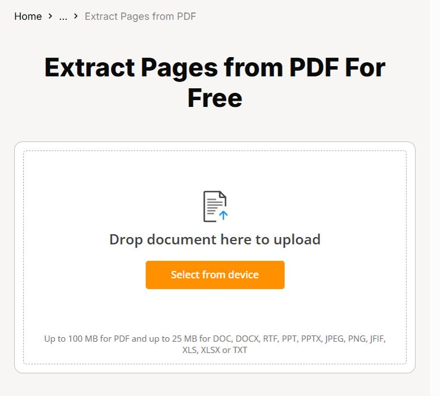
- Upload the PDF from your device or open it from your account.
- Choose how to divide it: every page, set ranges or custom sections.
- Check the page preview to confirm each new file starts and ends where it should.
- Run the split, then save the new files to your account or download them.
The preview step matters more than it looks. A misplaced range can leave the first page of an addendum attached to the wrong agreement, and that kind of error is easy to miss once the files are renamed and sent.

Prepare the Source File Before You Split
Splitting works best on a clean document. If the file is a scan, running OCR first turns the page images into editable, searchable text, which makes it far easier to find section breaks and to edit the resulting files later. pdfFiller includes OCR for scanned files alongside its other PDF editor tools.
Check the page order too. Scanned stacks often come out with a page or two out of sequence, and it is simpler to rearrange pages in one file than to fix the same mistake across several. If related documents arrived separately, merge them first, then split the combined file along the sections you actually need. pdfFiller can also compare documents, which helps confirm that a revised version matches the original before it is divided.
What to Do With the Pieces
Splitting is usually a step toward something else, most often fill and sign. Once a single agreement or form is in its own file, it can be completed, annotated with comments or stamps, and sent for signature without the rest of the packet attached. In the United States, electronic signatures are legally recognized under the ESIGN Act and UETA, and pdfFiller supports eSignatures in line with both laws, as well as eIDAS and GDPR.
Pages that will be reused can become a fillable form or form template. pdfFiller’s LinkToFill feature turns a document into a public web link that collects signatures and data, which suits a one-page consent form split out of a longer intake packet. Every signed document also carries an audit trail.
Real-World Use Cases
Real Estate, HR and Legal
Real estate agents split closing packages so buyers, sellers and lenders each receive the leases, disclosures or purchase agreements that apply to them. HR teams break onboarding packets into the offer letter, W-4, I-9 and policy acknowledgements, so each form can be completed and stored separately. Legal teams divide discovery bundles into individual exhibits, and separate NDAs, affidavits and engagement letters for different parties.
Healthcare, Accounting, Construction and Insurance
Clinics separate patient intake and consent forms so each can be routed on its own, with a Business Associate Agreement in place under HIPAA. Accountants and tax preparers split a client’s year-end packet into individual forms, and pdfFiller offers direct IRS submission for supported tax forms. Construction and insurance teams working from the iOS or Android app can split field reports and claims paperwork on site.
Keeping Split Documents Secure
Every split creates new files, so it is worth knowing how the platform handles them. pdfFiller encrypts documents with 256-bit AES in transit and at rest and supports two-factor authentication. Individual documents can carry their own password, additional signer authentication and an expiry date. Documents stay in the user’s private account, are not shared with third parties and are not used to train AI models.
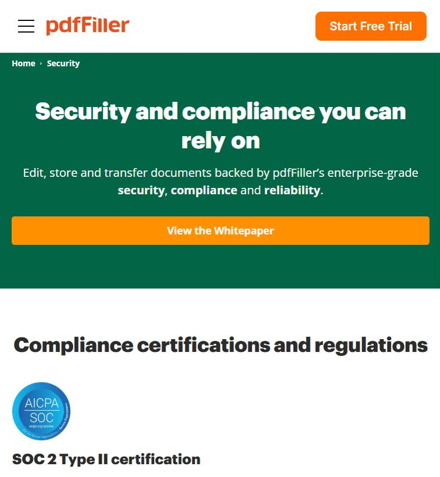
pdfFiller is independently certified for SOC 2 Type II and lists compliance with HIPAA, GDPR, CCPA, PCI DSS and FERPA; a signed BAA is available on specific plans. Its audit trail records who viewed, edited, signed or shared a document, with timestamps and IP addresses.

Frequently Asked Questions
Q: Does splitting a PDF reduce its quality?
No. Splitting copies existing pages into new files rather than re-creating them, so text, images and layout remain as they were in the original. If a page looks blurry after splitting, the issue almost always comes from the original scan, which is worth checking and rescanning before the file is divided.
Q: What is the difference between splitting and extracting PDF pages?
Extracting copies a few selected pages into a new file and leaves the original untouched. Splitting divides the whole document into several new files, such as one file per page or one file per section. Extract when you need a handful of pages; split when the entire document needs to be broken up.
Q: Can I split a scanned PDF?
Yes. A scanned PDF can be split like any other file. Running OCR first converts the scanned page images into editable, searchable text, which makes section breaks easier to find and lets you edit the resulting files afterward. pdfFiller includes OCR among its PDF editor tools for exactly this purpose.
Q: Can I split a PDF on my phone?
Yes. pdfFiller is available as a web app and as iOS and Android apps, so documents can be split, edited and signed from a phone or tablet. This is useful for field teams, such as construction crews or insurance adjusters, who need to separate reports or claims paperwork while away from a desk.
Q: Is it safe to split confidential PDFs online?
It depends on the platform. pdfFiller uses 256-bit AES encryption in transit and at rest, is independently certified for SOC 2 Type II, and keeps documents in the user’s private account without sharing them with third parties or using them to train AI models. Per-document passwords add another layer.
To read more content like this, explore The Brand Hopper
Subscribe to our newsletter
Go to the full page to view and submit the form.