
Runway AI, known for its advanced video generation capabilities, is now fully integrated into Pollo AI’s multi-model ecosystem. Together, they unlock powerful tools for creators—whether you’re an artist, marketer, educator, or filmmaker. In this guide, you’ll learn exactly how to use Runway AI through Pollo AI to generate cinematic, creative, and professional-quality videos.
What Is Runway AI?
Runway AI is one of the leading text-to-video and video editing models in the generative AI space. Its strengths include:
- Text-to-video generation
- Image-to-video motion
- Video-to-video stylization
- Motion brushes and lip sync
- Frame interpolation and expansion tools
Within Pollo AI, users can access Runway alongside other popular models like Kling, Hailuo, Vidu, and PixVerse—switching between them in a single workspace.
Step 1: Getting Started
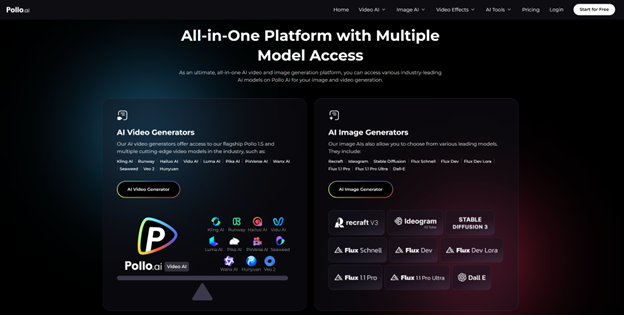
Sign Up & Navigate
- Create a Pollo AI account.
- Navigate to the Video Tools section.
- Select the video generation method you want:
1. Text to Video
2. Image to Video
3. Video to Video
Choose Runway from the model options—available versions include Gen-2, Gen-3 Alpha, and Gen-3 Alpha Turbo.
Step 2: Use Text-to-Video for Stunning Results
Runway’s text-to-video engine is one of the easiest ways to get started.
Choosing the Right Runway Model
- Gen-2: Best for motion brushes, detailed camera control, and stylized looks.
- Gen-3 Alpha: Adds tools like lip sync and structure transformation.
- Gen-3 Alpha Turbo: Prioritizes speed and lower cost without sacrificing output quality.
Writing Effective Prompts
To get the most out of Runway, your prompts should be specific:
Example Prompt:
“Close-up of a vintage car driving along a foggy mountain road, golden hour, cinematic tone, lens flare.”
Include elements like motion, camera direction, color mood, and composition. You can also define animation speed and camera perspective (e.g., “slow pan from left”).
Adjusting Settings
- Length: Keep it between 3–8 seconds for best results.
- Resolution: Default is 720p; 1080p available with upgrades.
- Aspect Ratio: Use 9:16 for social videos, 16:9 for cinematic feel.
- Motion Brush (Gen-2): Apply motion selectively by painting over the area you want to animate.
After inputting your settings, click Generate and wait for the video to render. It usually takes 1–3 minutes depending on the model and resolution.
Step 3: Animate Images with Runway
The image-to-video function lets you create cinematic clips from still pictures.
How to Use It
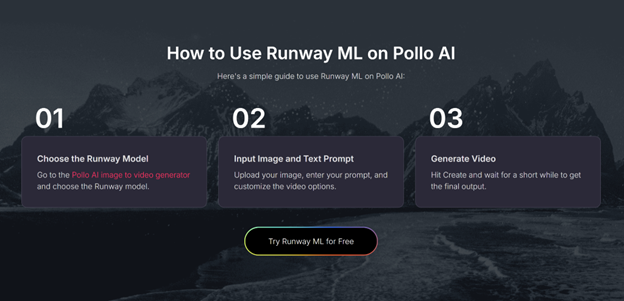
- Upload your image.
- Select a Runway model.
Write a motion prompt describing the type of animation you want.
Example: “Camera zooms into a crystal cave, ambient light pulsing softly.”
The motion brush can help you pinpoint which parts of the image should move—ideal for animating just a section (like water or sky) while keeping the rest static.
Step 4: Transform Existing Videos with Video-to-Video
Runway’s video-to-video tools are powerful for stylizing or enhancing existing footage.
Steps to Follow
- Upload a short video clip (less than 10 seconds is ideal).
- Select Gen-3 Alpha or Turbo depending on speed needs.
Write a style prompt.
Example: “Convert to impressionist painting, soft pastel brush strokes.”
You can adjust sliders like structure transformation, which controls how abstract or faithful the output remains to the original video.
Step 5: Enhance with Additional Tools
Once your base video is generated, Pollo AI allows you to layer effects or combine outputs from other models.
- Add Video Effects: Squish, Melt, Explode, or Inflate for social-friendly results.
- Maintain Character Consistency: Ensure subjects look the same across frames.
- Combine Models: Use Runway for motion, Kling for detail enhancement, and Vidu for template overlay.
Step 6: Tips for Best Results
- Use Specific Prompts: Include camera movements, emotions, lighting, and scenery.
- Start Small: Use lower resolution or shorter videos while testing.
- Refine with Motion Brushes: Especially useful when animating stills.
- Mix Models: Runway for realism, others for surrealism or cartoonish styles.
- Adjust Structure Slider: Lower for realism, higher for more stylized outcomes.
- Use Lip Sync Carefully: Make sure audio is clean and well-timed.
Step 7: Real-World Applications
Runway + Pollo AI works well in a ton of creative fields:
Social Media
- Short-form content
- AI meme creation
- Branded challenges
Marketing
- Product walkthroughs
- Ad teasers with animated elements
- Logo or brand storytelling
Education
- Visualizing scientific processes
- Animated history timelines
- Concept explainer clips
Filmmaking
- Previsualization
- Scene prototyping
- Animated pitch decks
Step 8: Troubleshooting
Output is blurry or inconsistent: Try a different seed or lower structure slider.
- Facial features warp: Use consistent reference images or reduce abstraction.
- Lip sync off: Check script timing and audio file clarity.
- Motion too fast/slow: Add pacing details in your prompt.
- Too surreal?: Choose Gen-3 Alpha and lower structure transformation for realism.
Step 9: Export & Share
Once you’re happy with the result:
- Download in MP4 format.
- Watermarked exports are available for free users; remove them with a premium plan.
- Edit further in your own software or post directly on your platform of choice.
Final Thoughts
Runway AI on Pollo AI is one of the most accessible and powerful ways to create stunning videos without touching traditional editing software. From stylized animation to realistic cinematics, you can generate impressive clips using only prompts, images, or short videos.
The key to success lies in experimentation. Don’t be afraid to test different prompts, tweak structure settings, and combine model outputs. With Pollo AI’s seamless model switching and Runway’s dynamic features, your video creation process becomes not just easier—but creatively unlimited.
Whether you’re a creator working on viral content, a marketer building branded ads, or a hobbyist looking to animate your ideas, Runway on Pollo AI is your new go-to tool.
To read more content like this, explore The Brand Hopper
Subscribe to our newsletter