

Nothing kills the vibe of a photo like unnerving digital noise — tiny random specks or grain that show up especially in low-light pics or older camera shots. These imperfections can make your photos look amateurish and distract from the real subject. But don’t sweat it — you don’t need Photoshop or a premium noise-reduction app. Upscale.pro lets you remove noise completely for free, right in your browser.
This guide dives deep into how to effectively denoise images with AI using Upscale.pro — so your shots stay crystal clear and visually compelling, whether for e-commerce, social media, prints, or family archives.
1. Why Noise Happens — And Why It Matters
Before we get to the “how,” let’s cover “why”: image noise occurs when camera sensors struggle to capture clean data. Causes include:
- Low-light environments
- High ISO sensitivity
- Compression artifacts from lossy formats like JPG
- Aging or inexpensive camera gear
Noise obscures details, flattens textures, and throws off visual focus. That’s bad news for professionals and hobbyists alike — it can tank engagement, conversions, and aesthetics.
2. Meet Your AI Denoising Tool: Upscale.pro
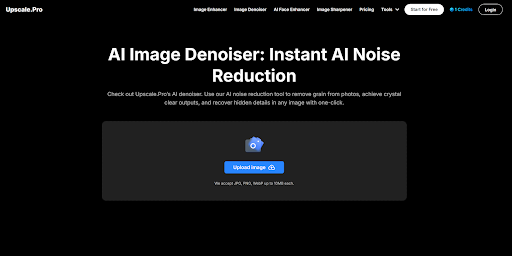
Upscale.pro is a web-based AI image enhancer that uses deep learning to remove noise while preserving image sharpness and texture. Unlike old-school noise filters that blur the image, this tool intelligently targets the noise without smudging details.
You don’t need an account, a subscription, or even a download. Just upload your image, click to enhance, and download a noise-free result. It’s optimized for speed, precision, and user-friendliness — whether you’re a designer, a photographer, or just someone fixing up a blurry pic.
3. Step-by-Step: How to Remove Noise from Any Image
Let’s walk through exactly how to denoise your photos using Upscale.pro.
Step 1: Go to Upscale.pro
Open the site on any browser — works great on desktop or mobile.
Step 2: Upload Your Noisy Image
Click “Upload” or drag-and-drop the image. Ideal file types are JPG, PNG, or WebP. Make sure it’s under 10MB for faster processing.
Tip: Avoid using screenshots or already compressed photos when possible. Original source files give the AI more texture to work with.
Step 3: Enable the Denoise Feature
After uploading, select the “Image Denoiser” toggle. You can pair it with other enhancements like:
- Upscale (2x–6x)
- Sharpening
- Face enhancement (for portraits)
Choose what suits your image — if it’s a noisy landscape, Denoise + Sharpen is a good combo. If it’s an old family photo, Denoise + Face Enhancement works best.
Step 4: Process and Preview
Click “Enhance” and wait a few seconds. The AI will analyze the image, detect the noise patterns, and intelligently remove them while preserving edges and fine detail. You’ll then see a side-by-side comparison of the original vs. the enhanced version.
Zoom in to inspect — you’ll notice less grain and smoother textures without that fake “blurred” look.
Step 5: Download the Result
Once you’re happy, hit the download button and save your cleaned-up image. File format and resolution will match the output settings you selected.
4. Why Upscale.pro’s AI Denoising Works Better
Most free tools rely on simple blur algorithms. The problem? They wipe out both noise and detail — resulting in soft, unnatural images. Upscale.pro uses neural networks trained on millions of high- and low-noise images. It knows how to detect and remove noise selectively, without compromising structure or contrast. That means:
- Skin stays skin, not plastic
- Textures like wood or fabric remain clear
- Edges stay crisp, not smudged
It also adapts to different content types — landscapes, portraits, anime, logos — and applies custom noise models accordingly.
5. Best Use Cases for Noise Removal
AI denoising isn’t just for photographers. Here’s where Upscale.pro really shines:
- Product Photos: Clean, noise-free images sell better
- Portraits & Headshots: Enhance clarity without over-smoothing skin
- Real Estate Shots: Make interiors and exteriors look professionally lit
- Low-Light Event Photos: Rescue dim or noisy memories
- Old Scanned Prints: Denoise + Upscale = modern clarity
- Digital Artwork: Sharpen illustrations while removing pixel grain
- Social Media Posts: Boost quality for platforms that compress images
Head to Upscale.pro and give it a try!
6. Pro Tips for Cleaner Results
Want that ultra-clean, professional finish? Follow these guidelines:
- Use Denoise with Sharpen for blurry low-light photos
- Don’t oversharpen — a light touch gives more natural results
- Avoid double-processing images that were already enhanced elsewhere
- Download in PNG to preserve more quality if you’ll edit further
- Batch Process similar images to save time and get consistent results
7. Speed and Batch Power for High-Volume Workflows
If you’re working with a ton of images — say, for an e-commerce shoot or a real estate listing — Upscale.pro supports batch uploads. This lets you denoise dozens of images at once without having to sit and tweak each one.
And because it’s web-based, you don’t need a high-spec laptop or powerful GPU. Just use your browser and let the AI handle the heavy lifting in the cloud.
Final Thoughts: Clearer Images Without the Hassle
No one likes noisy, grainy photos — and you don’t have to put up with them anymore. Upscale.pro gives you professional-grade denoising without the cost or complexity of traditional editing software.
Whether you’re restoring an old memory, prepping a post for social media, or sharpening product shots, this tool offers an easy, effective way to clean up your images — fast.
No installs. No subscriptions. Just high-quality results with one click.
To read more content like this, explore The Brand Hopper
Subscribe to our newsletter